

How to Check DRT Case Status Online
If you need to check drt case status, the fastest method is the official e-DRT portal, where you can search by diary number, case number, party name, or advocate name. This works for all Debt Recovery Tribunals across India, including DRT Delhi, Mumbai, Chennai, and Kolkata, since the portal pulls records from a centralized database maintained under the Recovery of Debts and Bankruptcy Act, 1993. You do not need a login or a court visit to get a case update, and the results usually load within seconds once you enter the correct details.
Most searches fail not because the portal is broken, but because people enter the wrong case number format or search under the wrong DRT bench. Getting this right matters when a hearing date is approaching and your client wants an update, much like checking the NCLT cause list online before a listing, or when you are tracking multiple recovery proceedings at once and cannot afford to miss a listing.
This guide walks through each search method step by step, including what diary numbers mean, how to read the status once it loads, and what to do if the portal shows no record at all. If you handle DRT matters regularly, an AI platform built for Indian courts and statutes like LeXi AI can also help you track case files and summarize lengthy DRT orders once you have pulled the case details, cutting down the manual review time significantly.
What you need before checking your DRT case status
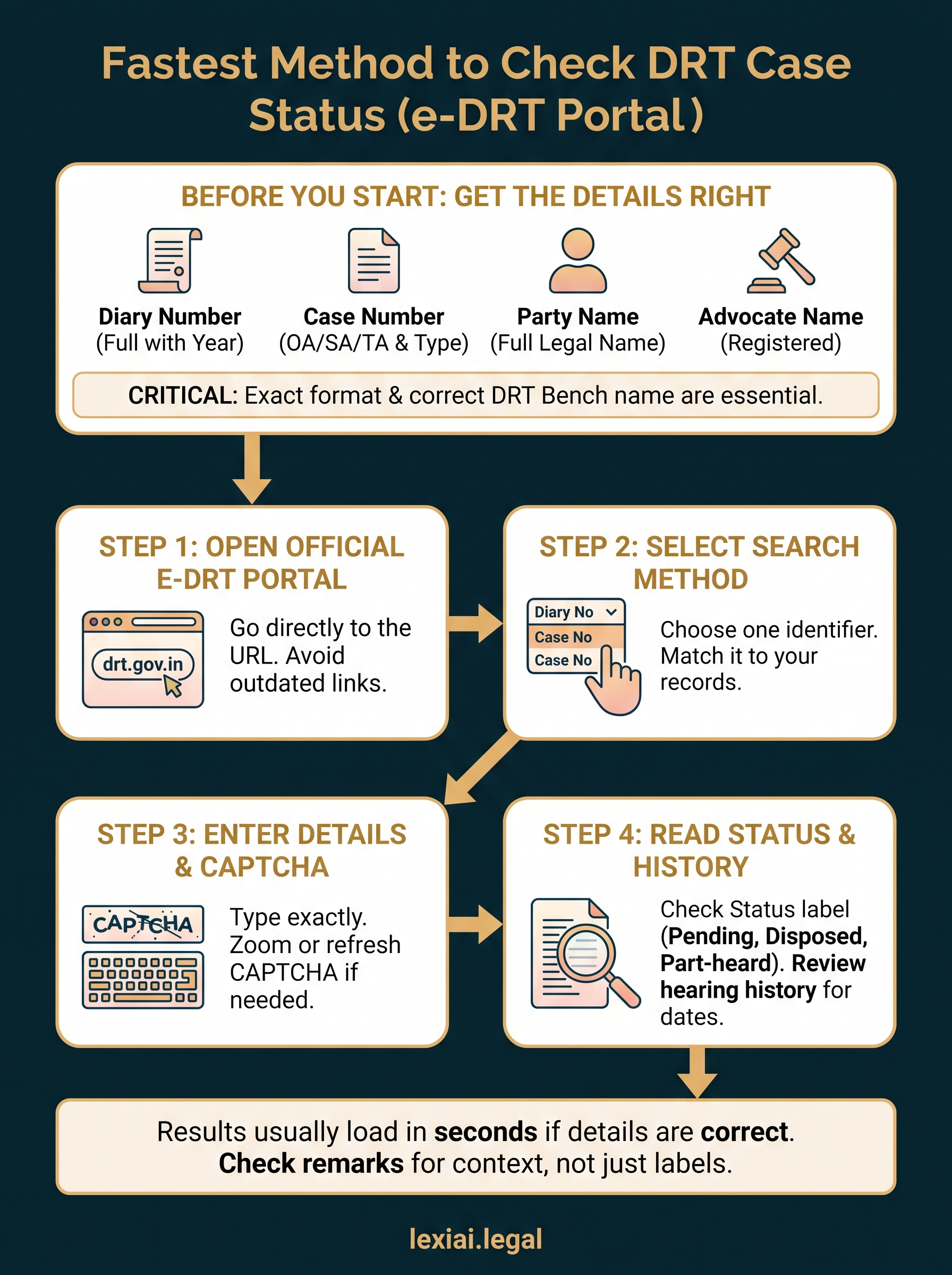
Before you open the portal, decide which identifier you will search with, since the e-DRT system needs at least one clean, correctly formatted reference point. A vague memory of "the bank filed something last year" will not get you anywhere. Case identification matters more than speed here, because a wrong digit in the case number pulls up either an error page or, worse, someone else's proceeding.
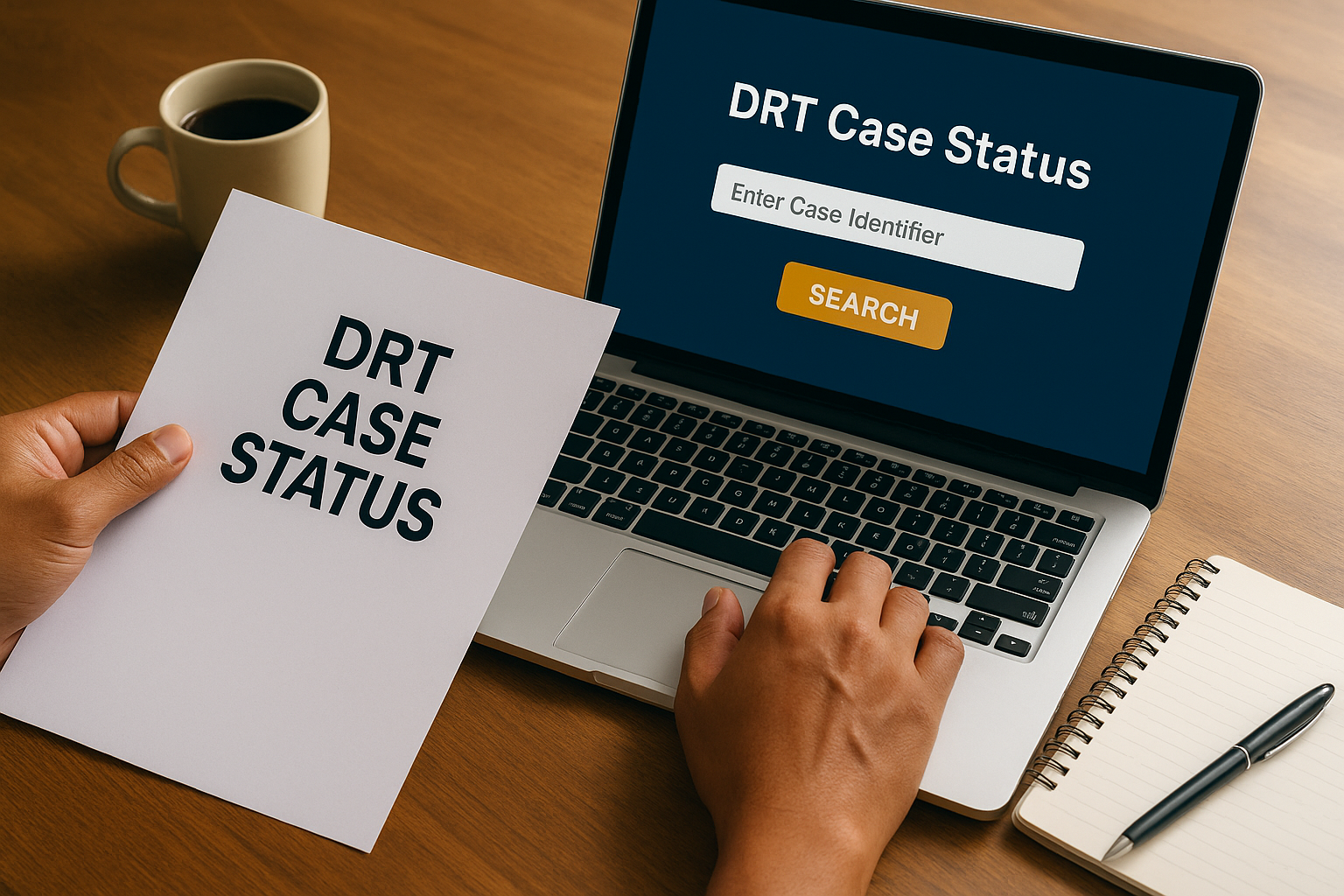
Which details actually work
Each search method on the portal accepts a specific input, and mixing them up is the most common reason searches fail. Use this table to check what you need on hand before you start:
| Search method | What you need | Where to find it |
|---|---|---|
| Diary number | Full diary number with year | Filing receipt or advocate's case file |
| Case number (OA/SA/TA) | Application type and registration number | Earlier order copies or the tribunal registry |
| Party name | Full legal name of applicant or defendant | Loan agreement, notice, or plaint |
| Advocate name | Registered name as filed with the DRT | Vakalatnama or engagement letter |
Getting the exact case number format right saves more time than any other single step in this process.
Keep a copy of the DRT bench name too, whether it is DRT Delhi, DRT Mumbai, or another jurisdiction, since some portal configurations ask you to narrow the search by bench before running a case number search. If you are unsure which bench has your matter, check the original notice for recovery of money from the bank or NBFC, since it usually names the tribunal where the Original Application was filed. Having these three things ready, the right identifier, the correct format, and the bench name, turns a five-minute search into a ten-second one.
Step 1. Open the e-DRT portal
Start by opening the official e-DRT portal at drt.gov.in in a fresh browser tab, since some third-party legal directories link to outdated mirror sites that no longer sync with the live database. Type the URL directly instead of clicking through a search engine result, because a stale bookmark or a copied link from an old email can quietly drop you on a version of the portal that has not been updated in months.
Once the homepage loads, look for the case status or case search section, usually listed on the main navigation bar. Government portals get restructured now and then, so the exact menu wording shifts occasionally, but the case status link stays somewhere on the front page.
Confirm you are on the right page
Before entering any details, check that the page title mentions case status or e-DRT search. If the portal times out or shows a blank screen, common on high-traffic days near filing deadlines, refresh once and try again before assuming your case record is missing. A slow server response is far more common than an actual data gap, so patience here saves a wasted trip to the registry counter.
Step 2. Select your search method
Once you land on the case status page, you will see tabs or dropdown options for the different search methods: diary number, case number, party name, and advocate name. Pick whichever identifier you confirmed earlier, since switching midway usually resets the form and clears any details you had already typed.
Matching the method to what you have on hand
Government portals rarely explain why one search method works better than another, so use this quick guide instead of guessing:
- Diary number: fastest option, use it if you have the filing receipt
- Case number (OA/SA/TA): reliable once the registry has formally numbered the matter
- Party name: useful when you only remember who the parties are, but expect multiple results, the same way a party name search on eCourts works
- Advocate name: helpful for firms tracking several matters under one lawyer
Choosing the wrong search method wastes more time than any typo ever will.
Select the bench too if the portal asks for it, since DRT Delhi and DRT Mumbai keep separate registries even within the same case search interface. Skipping this step often returns a blank result even when the case genuinely exists.
Step 3. Enter details and complete the CAPTCHA
Type the identifier you chose into the field exactly as it appears on your source document. A single misplaced slash or space in a case number like OA/1234/2023 is enough to return a blank page, so copy it character by character instead of typing from memory. If you are searching by party name, enter the full legal name rather than a shortened version, since the portal often runs an exact-match search rather than a partial one.
Getting past the CAPTCHA without repeat attempts
Most delays at this stage come from the CAPTCHA verification, not the case search itself. Follow this order to avoid retyping everything:
- Zoom into the CAPTCHA image if the characters look distorted, rather than guessing
- Enter the code in the same case (upper or lower) shown on screen
- Refresh the CAPTCHA if it fails twice, instead of resubmitting the same code
- Double-check the case details field has not cleared before you click submit
A wrong CAPTCHA guess costs you the whole form, not just that one field.
Once both fields are correct, click search and give the portal a few seconds to pull the record.
Step 4. Read the case status and hearing history
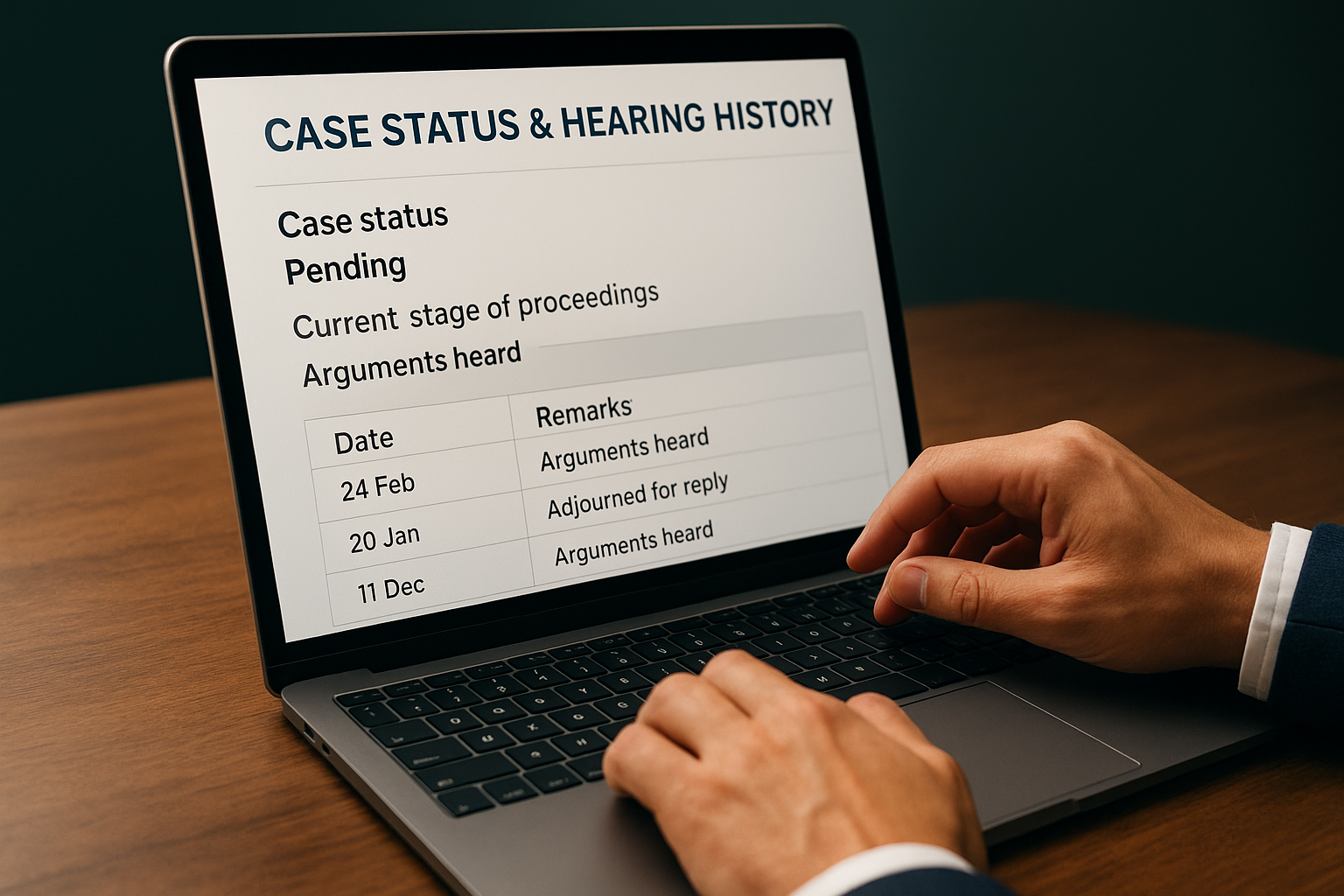
Once the record loads, you will see the case status displayed as a short label such as pending, disposed, or part-heard, along with the current stage of proceedings. Below that sits the hearing history, a chronological list of past dates with brief remarks like "arguments heard" or "adjourned for reply." Scroll through this list rather than trusting only the top line, since the most recent entry sometimes lags behind the actual next hearing date by a day or two.
What the status fields actually mean
Government portals use short-form labels that are not always self-explanatory, so keep this reference handy:
- Pending: matter is active, no final order yet
- Part-heard: arguments started but not concluded
- Reserved: order awaited after final hearing
- Disposed: tribunal has passed a final order
A status label only tells you where the case stands, not why it got there, so always check the remarks column too.
Cross-check the bench name and case number shown on the results page against your own records before you report anything back to your client, just as you would when tracking a Supreme Court matter. A mismatch here usually means the portal pulled a similarly numbered matter from a different DRT.
Keeping track of your DRT case going forward
Checking your drt case status takes less than a minute once you have the right identifier, the correct format, and the correct bench. The e-DRT portal handles the lookup itself, but the real work starts after the page loads, reading the remarks correctly, spotting the next hearing date, and flagging anything that looks off before you report back to your client.
If you track several DRT matters at once, doing this manually every week adds up fast. Many lawyers now run this alongside a legal intelligence platform that pulls case files, summarizes lengthy orders, and flags what actually changed since your last check, instead of making you reread the whole record each time. That kind of tracking matters more as your caseload grows, not less.
If you want to see how this fits into your existing workflow, see what LeXi AI can do for your practice.