

How to Check Case Status by Party Name on eCourts
You have a party name and nothing else, no CNR number, no case number, and you need to know what happened at the last hearing. A case status search by name on the eCourts portal handles exactly this problem, and it takes less than a minute once you know where to click.
Go to the eCourts Services portal, select
What you need before searching eCourts by party name
Before you touch the eCourts portal, gather a few basic facts about the case. A case status search by party name works only when you know the state and, ideally, the district or court complex where the case was filed. Searching without this narrows nothing, and you will end up scrolling through hundreds of unrelated entries with similar names.
Start with the exact spelling of the party's name as it appears in the filing, not a nickname or a shortened version. Courts often register names with initials, middle names, or transliterated spellings that differ from how a person is commonly known. If you know both the petitioner and respondent names, keep both ready since either can return results depending on how the case was indexed.
Next, figure out the type of court involved. A court case status search by name on the main eCourts Services portal covers District Courts and Taluka Courts across India, but it does not cover High Courts. Each High Court runs its own case status portal with a similar name-search feature, so know in advance whether you are dealing with a district-level matter or a High Court appeal.
Get the name spelling and court level right first, because eCourts search results are only as accurate as the details you feed into them.
Here is a quick checklist before you start:
- Exact party name as filed, including initials and suffixes
- State and district where the case is registered
- Whether it is a District Court, Taluka Court, or High Court matter
- Approximate year of filing, if you know it, to narrow long result lists
- A stable internet connection, since the portal reloads results on every filter change
With these details on hand, the actual search takes only a few clicks.
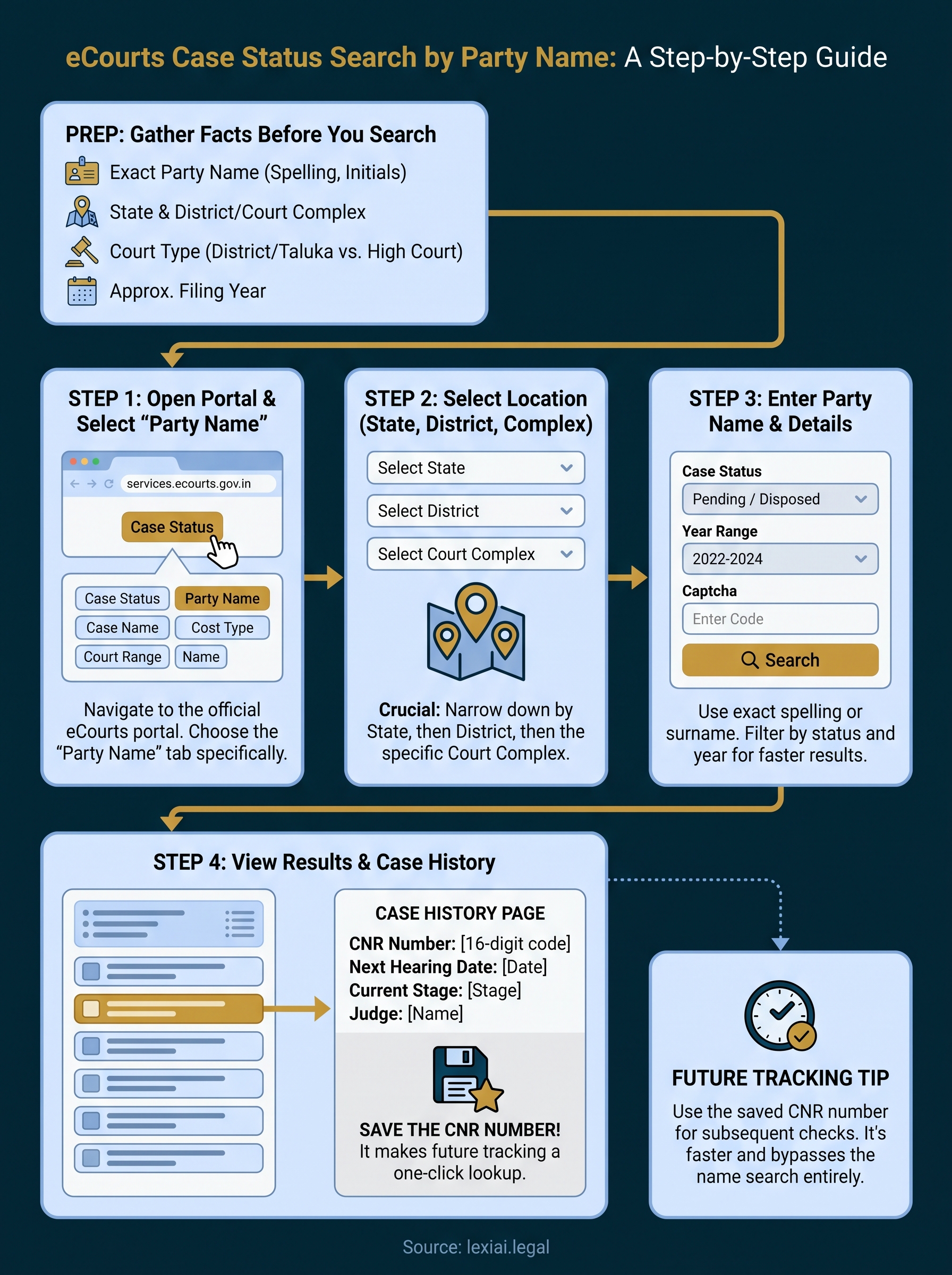
Step 1. Open the eCourts case status portal
Head to the official eCourts Services website at https://services.ecourts.gov.in, which is the National Informatics Centre's portal for District and Taluka Court records across India. This is the only site you need for a case status search by name at the district level, so skip any third-party site that claims to offer the same lookup.
Once the homepage loads, look for the "Case Status" tab in the main navigation. Clicking it opens a set of search options, including CNR number, case number, filing number, FIR number, and, most useful here, party name. Choose the party name tab specifically, since the other tabs require details you do not have yet.
If you only remember one thing from this guide, remember to search by party name from the eCourts Case Status tab, not through a general web search.
A few things to check before moving on:
- Confirm the URL starts with services.ecourts.gov.in
- Make sure you landed on "Case Status," not "Case History" or "Cause List"
- Select the "Party Name" option from the search tabs shown
Once this loads, the portal asks you to narrow the search by location before it shows any names.
Step 2. Select the state, district, and court complex
After you pick the Party Name tab, the portal asks you to narrow the search by location before showing you any records. Choose your state from the dropdown menu, then select the district where the case was filed. If you skip this step or guess wrong, the search returns nothing useful even if the party name is correct.
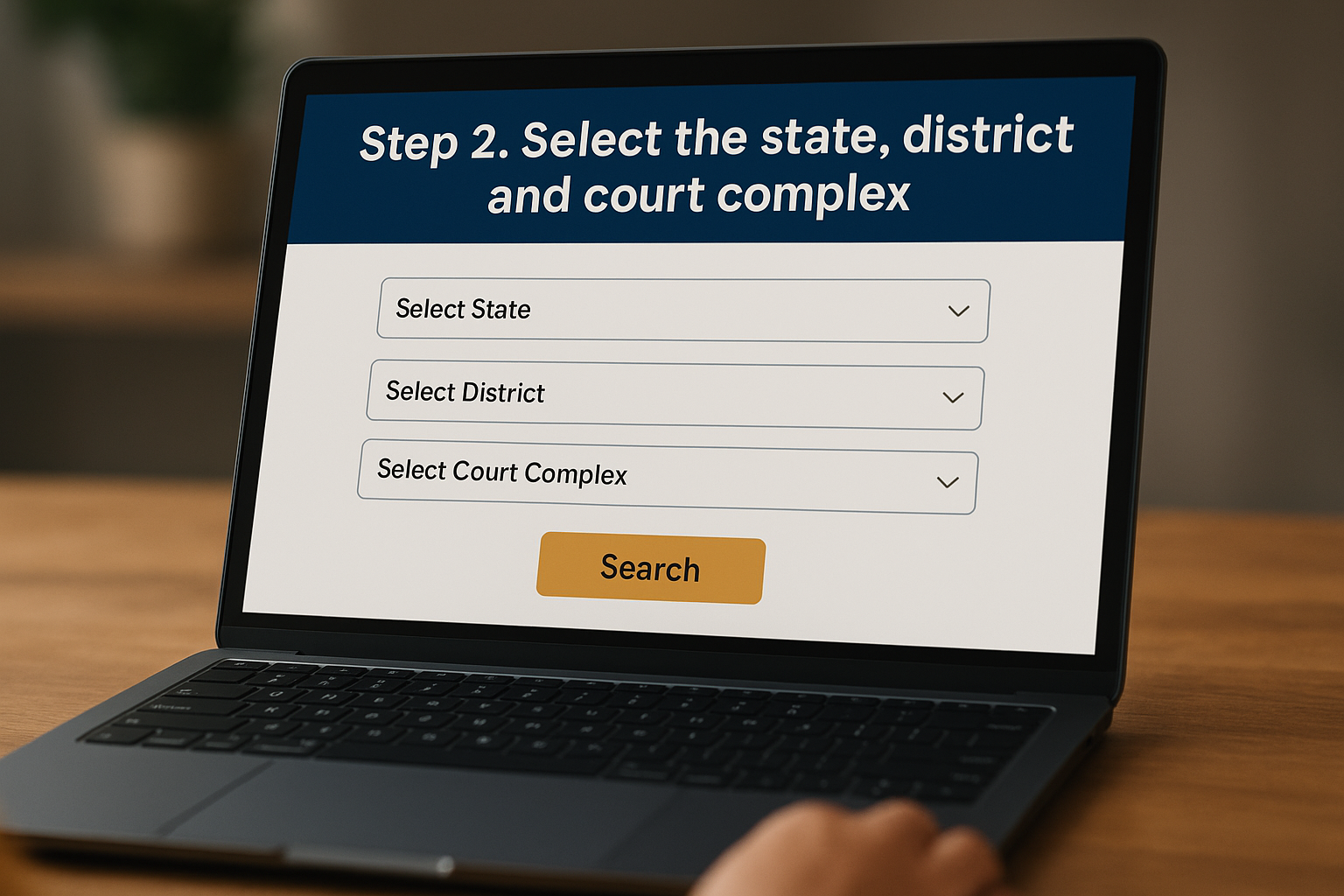
Next, pick the specific court complex from the list that appears once you select the district. Larger districts often have multiple court complexes, so if you are unsure which one, check the case papers or ask the filing advocate before proceeding. Some states also let you narrow further by court establishment, which helps when a district has several magistrate or civil courts operating separately.
A court case status search by name only works if the state, district, and court complex match where the case actually sits.
Quick reference for this step:
- Select state
- Select district
- Select court complex (and court establishment, if shown)
- Confirm the correct year range, if the portal asks for one
Once these filters lock in, the portal is ready for the actual name entry.
Step 3. Search by party name and enter case details
Type the party name field with the exact spelling you gathered earlier, using either the petitioner or respondent name, not both at once. The portal matches partial names too, so entering just a surname often works better than a full name if you are unsure of spelling variations used at filing.
Below the name field, choose whether you want pending cases, disposed cases, or both, since leaving this open returns a longer, messier list. Pick a case type if the dropdown offers one, and set an approximate filing year range if you have it, because this single filter cuts irrelevant results dramatically.
A case status : search by party name narrows fastest when you filter by pending or disposed status before hitting submit.
Finally, enter the captcha code shown on screen exactly as displayed, then click search.
Party Name: Sharma (surname only, if unsure of full spelling)
Case Status: Pending
Year Range: 2022-2024
Captcha: [enter as shown]
Submit the form, and the portal loads a results table within seconds.
Step 4. Read the case status results and case history
Once the results table loads, you will see a list of matching cases with the case number, party names, and the stage of the case. Scan this list carefully, since multiple entries with similar names are common in busier districts. Click on the correct entry to open the full case status page.
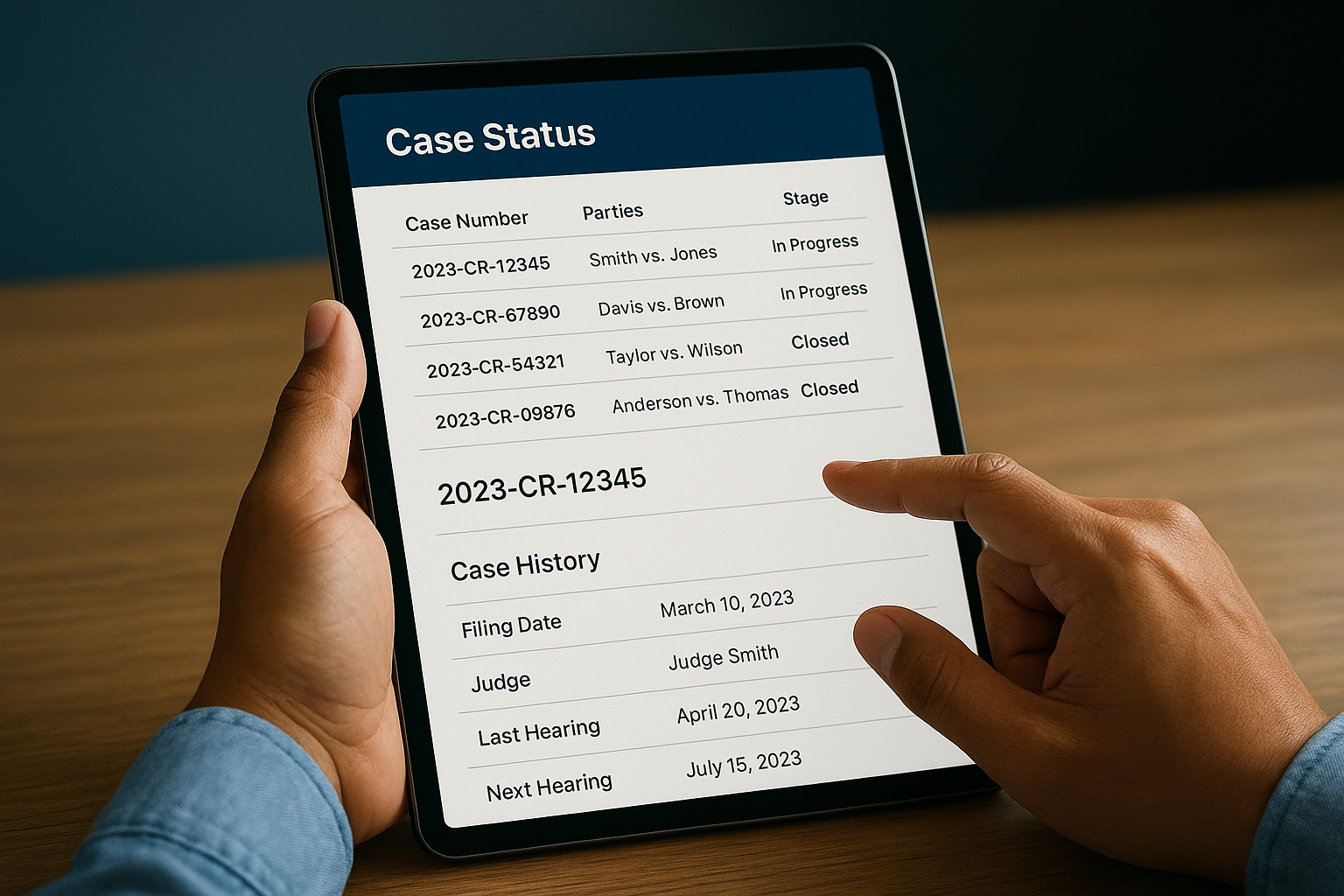
This detail page shows the case history, including the filing date, the judge assigned, the last hearing date, and the next date fixed. Below that, you usually find an order sheet or a list of interim orders, and sometimes scanned copies of orders you can download directly.
The case number and the CNR number shown here are worth writing down immediately, since they turn every future search into a one-click lookup instead of a repeat party name search.
Before you close the tab, note down these details:
- CNR number (16-digit unique code for the case)
- Next hearing date
- Current stage (evidence, arguments, final hearing, and so on)
- Presiding judge or bench
With the CNR number saved, you never need to search by name again for this particular matter.
Keeping track of your case going forward
Searching by party name gets you started, but the CNR number you saved in Step 4 is what makes tracking effortless from here. Use it for every future check instead of repeating the full name and location search, since a CNR-based lookup returns the exact case in one step. This matters most when you are tracking several matters across different districts, where remembering court complex names and filing years for each one becomes tedious fast.
For lawyers and firms juggling dozens of active matters, manual status checks on eCourts eat into billable hours that could go toward actual case strategy. This is where a connected platform helps, and it is exactly why tools like LeXi AI's litigation module exist, to pull hearing updates, case history, and document summaries into one place instead of separate portal visits. If you want to see how that fits into your practice, take a look at the LeXi AI platform.