

How to Check Case Status by Police Station on eCourts
If you have an FIR number and the name of the police station but no case number, you can still track a matter on eCourts. The case status : search by police station option lets you pull up pending and disposed cases directly from the FIR details, without needing the CNR number or party name. This is the fastest route when a client only hands you a police complaint copy or a first information report extract.
Most lawyers get stuck because the eCourts district court portal asks for the state, district, and complaint year before it shows results, and picking the wrong police station from a long dropdown list wastes time. Getting the FIR number search right on the first attempt saves you from repeated form submissions and captcha retries.
This guide walks through the exact steps on the eCourts services portal, from selecting your state and district to entering the FIR year and station name correctly. We also cover common mistakes that return blank results and mention how AI legal research tools like LeXi AI can speed up case tracking and status verification for busy practices.
What you need before you start
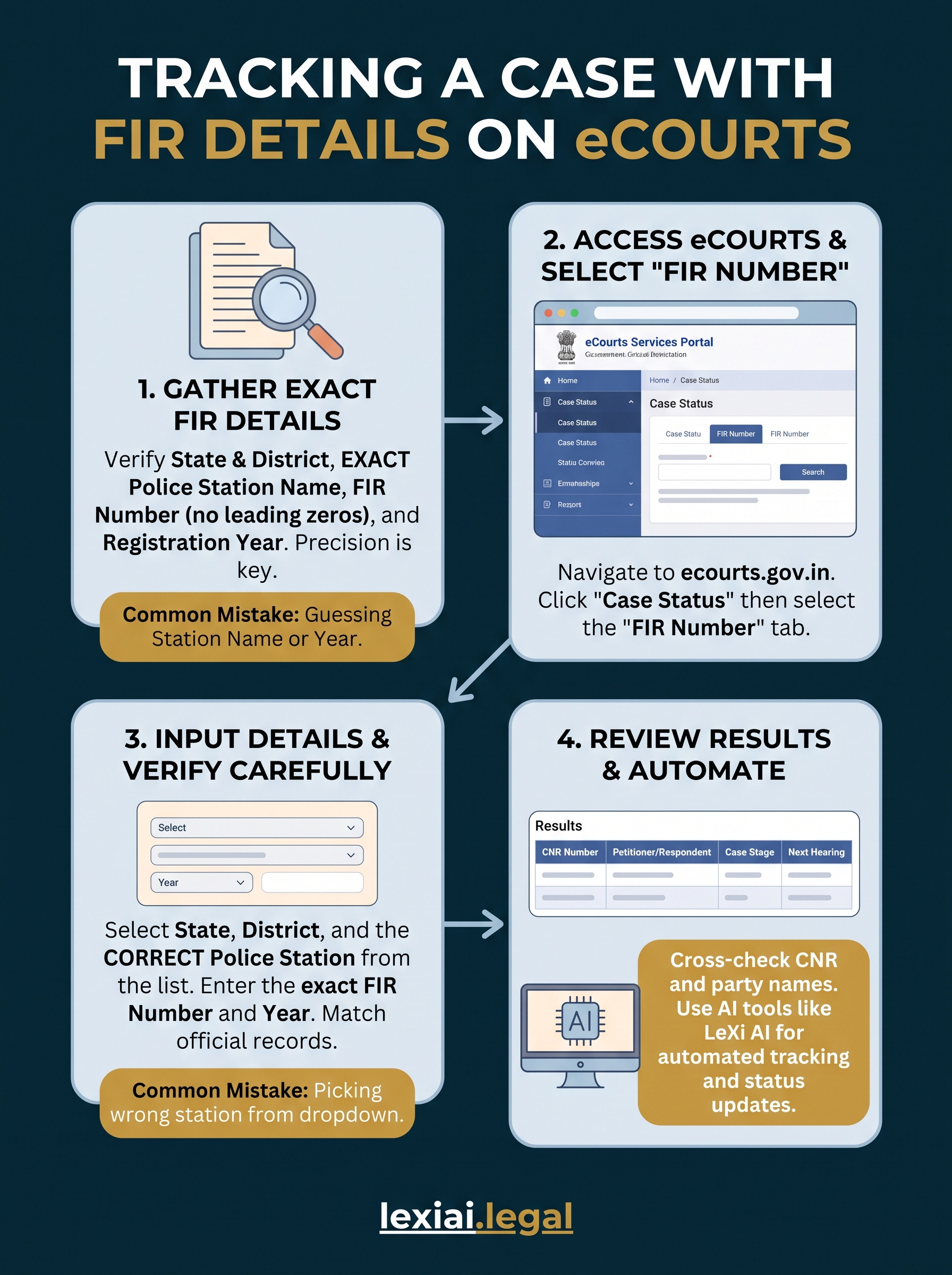
Before you open the eCourts portal, gather the exact details from the FIR copy or the police complaint acknowledgment slip. Guessing the police station name or the FIR year is the single biggest reason searches return blank results. Spend two minutes checking your paperwork now, and you will avoid five failed attempts on the portal later.
Information you must gather
Check the FIR extract or the complaint copy for these details before you start:
- State and district where the FIR was registered, not where the accused resides
- Exact police station name as it appears in official records, including spelling variations like "PS" versus "Police Station"
- FIR number exactly as printed, without adding leading zeros unless the original document shows them
- Year of registration, since a wrong year is the most common cause of empty results
- Case type, if known, whether it is a criminal case, a bail application, or a chargesheet-stage matter
Getting the police station name and FIR year exactly right matters more than any other step in this process.
Technical requirements
You also need a working device and a browser that renders the eCourts captcha properly. Old browser versions sometimes fail to load the dropdown menus correctly, which forces you to refresh the page repeatedly.
| Requirement | Why it matters |
|---|---|
| Stable internet connection | eCourts servers time out on slow connections |
| Updated browser (Chrome or Edge) | Older browsers misrender captcha and dropdowns |
| FIR copy or complaint acknowledgment | Source of station name, number, and year |
| Ten minutes of uninterrupted time | Avoids session timeouts mid-search |
Once you have these ready, open the official eCourts services portal and begin the search.
Step 1. Open the eCourts case status portal
Navigate to the official eCourts services portal rather than a third-party mirror site. Several unofficial sites copy the eCourts interface and rank well on search engines, but they often show outdated data or ask for information the real portal never requests. Bookmark the genuine government link once you confirm it, since you will likely return to it for every new matter.
Always verify the URL reads ecourts.gov.in before entering any FIR details.
Finding the correct search tab
Once the homepage loads, look for the "Case Status" menu on the top navigation bar. Clicking it opens several search options, including CNR number, party name, advocate name, and filing number.
- Click Case Status on the main menu
- Select the tab labeled "FIR Number" from the row of search options
- Confirm the page refreshes to show state and district dropdowns
Skip the CNR and party name tabs entirely if you only hold FIR details. Choosing the wrong tab is a common reason lawyers waste their first search attempt before reaching the actual police station search fields.
Step 2. Select the state, district, and police station
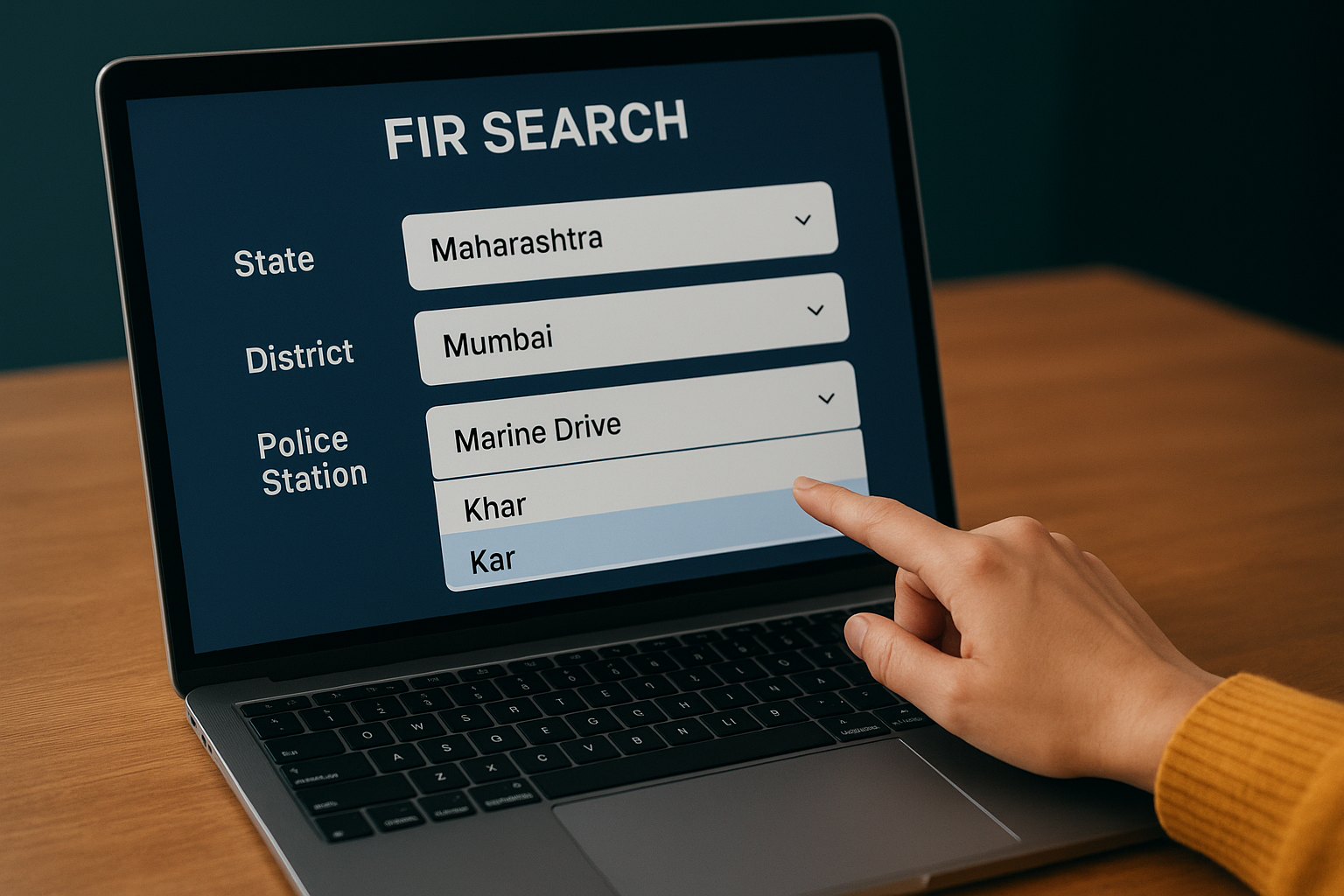
After you land on the FIR search tab, pick the state first, since the district and police station dropdowns stay empty until you do. Choose the state where the FIR was actually registered, not where your client currently lives or where the trial might eventually shift. Wrong state selection is the second most common reason lawyers see zero results after a completed search.
Matching the police station name exactly
Once the district loads, scroll through the police station dropdown carefully rather than typing the first few letters and picking the top match. Many districts have stations with near-identical names, such as "City Kotwali" and "Kotwali," or two stations named after the same locality with different suffixes.
- Confirm the district matches the FIR extract, not the court's jurisdiction
- Read the full station name in the dropdown before clicking
- Cross-check against the FIR copy if two similar names appear
- Note that some states list stations alphabetically, others by circle or division
A single wrong police station selection guarantees a blank result, no matter how correct the FIR number is.
Take your time here. This step decides whether the rest of the search even runs correctly.
Step 3. Enter the FIR number and year
Now you reach the two fields that decide the entire search: the FIR number box and the year dropdown. Type the FIR number exactly as printed on your copy, since the eCourts system matches digits literally and does not auto-correct typos or extra spaces.
Formatting the FIR number correctly
Mistakes here usually come from adding or removing leading zeros that were never part of the original number. Before submitting, run through this quick checklist:
- Copy the FIR number digit by digit from the printed extract
- Remove any prefix letters unless the portal field specifically asks for them
- Avoid adding a slash or hyphen unless the original document uses one
- Recheck the number once more before clicking submit
A misplaced zero in the FIR number produces a blank result even when everything else is correct.
Selecting the correct year
Pick the year of FIR registration, not the year the case reached trial or the year you filed for bail. Complainants sometimes register an FIR in December and the chargesheet gets filed the following January, so double-check against the acknowledgment slip rather than assuming the current calendar year. Once both fields look correct, enter the captcha carefully and submit the form to move toward the results page.
Step 4. Read and verify the case status results
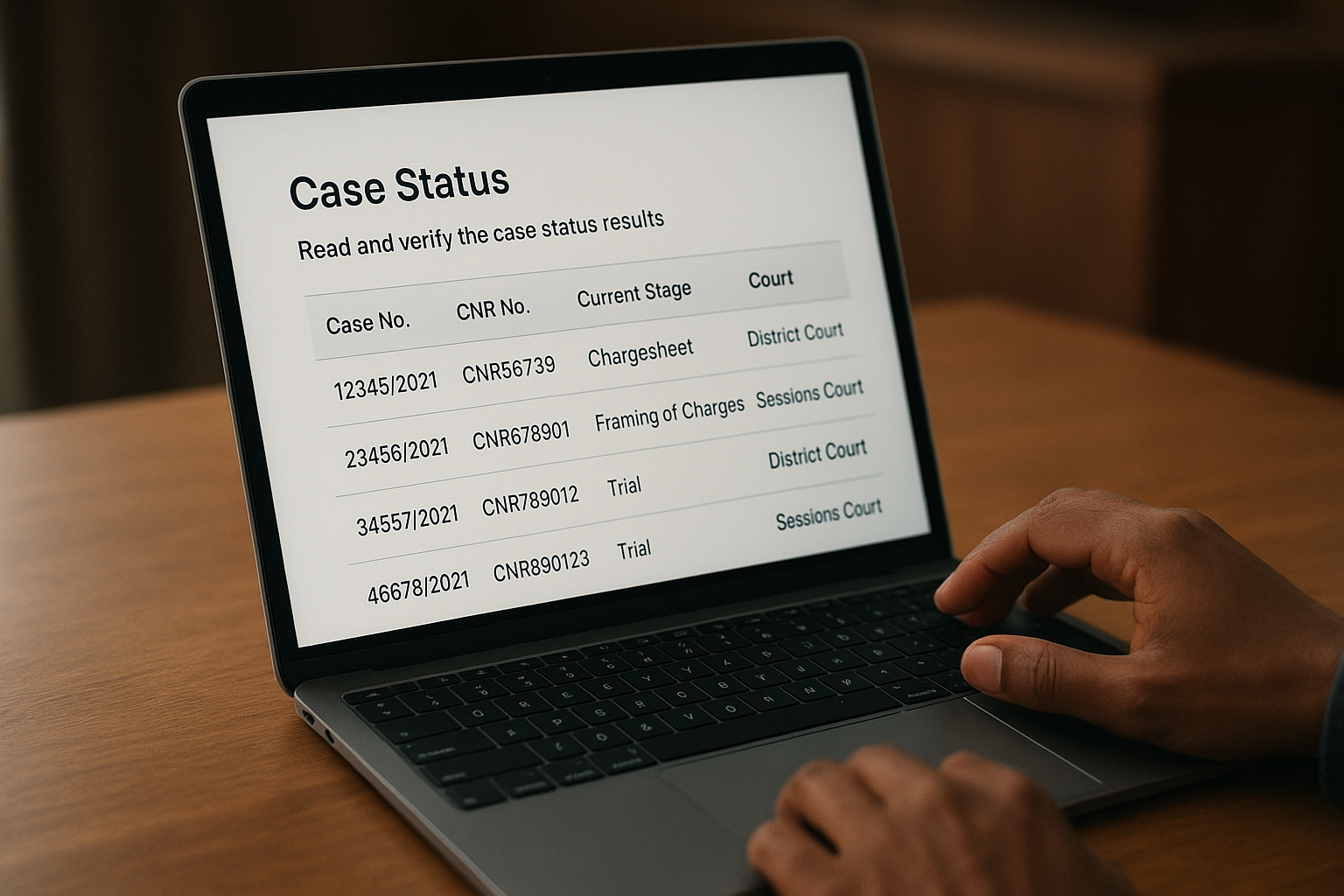
Once the portal accepts your entries, it displays a table listing every case linked to that FIR number and police station combination. Scan the case status table for the CNR number, the current stage of proceedings, and the court where the matter is listed, since a single FIR can spawn multiple linked matters like a bail application and the main trial.
What the results table actually shows
Before trusting any single row, check these details against your case file:
- Case number and CNR assigned by the court, not the FIR number itself
- Petitioner and respondent names, to confirm you have the right matter
- Current stage, whether it is at chargesheet, framing of charges, or trial
- Next hearing date, listed separately from the filing date
- Court name and judge, which may differ from where the FIR was registered
Never rely on the FIR number alone; always cross-check the CNR and party names before updating your case diary.
Click on the CNR number to open the detailed case history, including order sheets and hearing dates. Cross-verify the police station name shown here against your source document, since results occasionally include neighboring stations with overlapping jurisdiction codes.
Keeping track of your case going forward
Once you find the right matter through police station search, do not treat it as a one-time lookup. FIR-linked cases move through chargesheet, framing of charges, and trial over months, sometimes years, and hearing dates shift often. Bookmark the eCourts result page and note the CNR number in your case diary so future checks take seconds, not the full search process again.
Manually rechecking dozens of matters every week gets tedious fast, especially when you handle multiple FIRs across different stations and districts. This is where case tracking automation through a platform like LeXi AI helps, pulling status updates, hearing dates, and order sheets into one dashboard instead of repeated portal visits.
If your practice juggles several pending matters at once, it is worth seeing how much time a connected system saves. Create a free account and try tracking your next case through it.