

How to Check NCLT Case Status and Orders Online
You filed a case before the National Company Law Tribunal, and now you need to know what is happening with it. Checking NCLT case status does not require a visit to the registry or a call to your lawyer every week. The NCLT website itself publishes cause lists, hearing dates, and NCLT orders for every bench across India, and once you know where to look, tracking a case takes a few minutes.
The short answer is this: go to the official NCLT website, use the case status search under the relevant bench, enter your case number or party name, and you will get the hearing history, next date, and any uploaded orders. The same process works whether you are tracking a company petition, an insolvency matter under the IBC, or a corporate dispute filed by opposing counsel.
This guide walks through the exact steps to search by case number, party name, or advocate name, how to read the cause list for your bench, where to download certified orders and judgments, and what to do when the portal does not show updates. We also touch on how tools like LeXi AI can speed up tracking multiple matters and summarizing lengthy orders once you have them in hand.
What you need before checking your NCLT case status
Before you open any portal, gather the basic identifiers of your matter. The NCLT case status search works best when you already know which bench heard your case, since the tribunal has separate benches in cities like Mumbai, Delhi, Chennai, Kolkata, and Ahmedabad, and each bench maintains its own cause list and case records. Without this detail, you will waste time searching the wrong registry.
What details should you have ready?
At minimum, keep the following on hand before you search:
- Case or diary number as issued by the registry at filing, usually in the format CP/IA/TA followed by numbers and year
- Bench name where the petition or application was filed
- Names of the petitioner and respondent, in case you need to search by party name instead of case number
- Advocate name on record, useful as a backup search field
- CIN (Corporate Identification Number) of the company involved, if the matter relates to a company petition or insolvency proceeding under the IBC
Why the bench matters
Many first-time users assume the NCLT operates as a single national database, but it does not. Each bench uploads cause lists and orders separately, so searching under the wrong bench returns no results even when your case is very much alive.
Knowing your bench and case number before you search saves more time than any shortcut on the portal itself.
If you filed through counsel, a quick message asking for the case number and bench name takes less time than guessing. Corporate legal teams tracking several NCLT matters at once often keep a simple spreadsheet, or move to legal practice management software, with bench, case number, and next hearing date for every active file, which becomes the backbone for the tracking steps that follow.
Step 1. Open the NCLT case status portal
Navigate to the official NCLT website, which is the only source that maintains live cause lists and certified NCLT orders for every bench in the country. Third-party legal databases sometimes mirror this data, but they lag by days and often miss interim orders, so stick to the tribunal's own portal for anything time-sensitive like a hearing date tomorrow, the same way you would use the official e-DRT portal to check DRT case status online.
The official NCLT portal is the only place where your case status is guaranteed to be current.
Where exactly do you find the case status link?
Once you land on the homepage, look for the case status or case details section, usually listed under a menu labeled e-Courts or Case Status. From there:
- Select the correct bench from the dropdown, such as Mumbai, Delhi, or Chennai, based on where the matter was filed
- Choose the case category, for example Company Petition, Company Application, or Transfer Petition
- Confirm you are on the right module before entering any search terms, since insolvency filings under the IBC sit in a separate section from regular company law matters
Getting this first click right matters more than it seems. Selecting the wrong bench or category at this stage is the single biggest reason lawyers report that a case is not showing up, when the record was there all along under a different filter.
Step 2. Search your case by number, diary, or party name
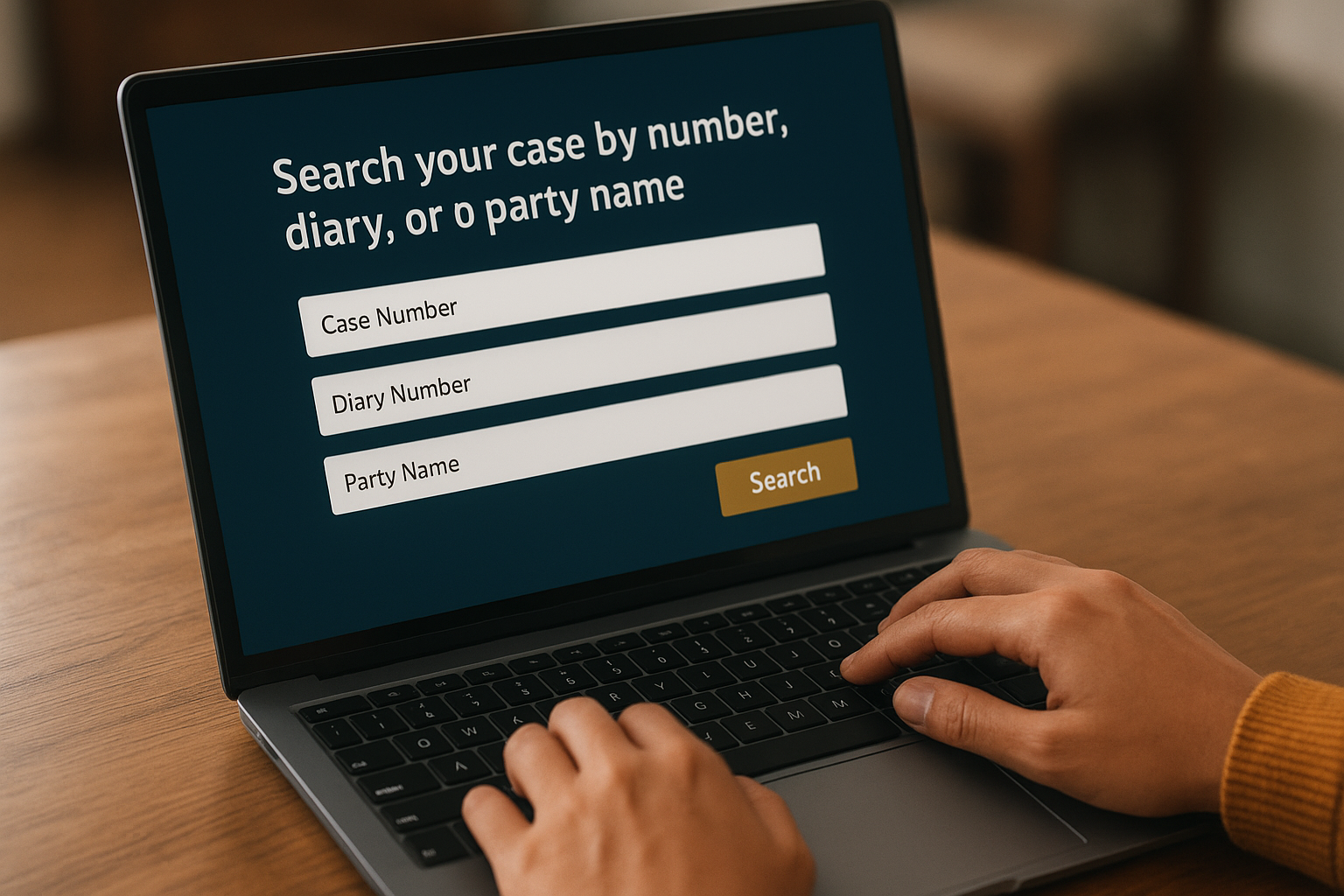
Once you have selected the right bench and category, the portal gives you three ways to pull up a matter: case number search, diary number search, or party name search. Case number search is fastest if you have the exact CP or IA number from your filing, since it returns the record in one query without any guesswork.
Which search field should you use?
Diary number search helps when the registry has not yet assigned a formal case number, which happens often in the first few weeks after filing. Searching case status by party name is your fallback when you only remember who you sued or who sued you, though it can return multiple matches if the name is common, so cross-check the CIN or advocate name to confirm you have the right entry.
- Case number: fastest, most precise, use when available
- Diary number: use for newly filed matters awaiting registration
- Party name: use when case number is unknown, verify with CIN
A precise case number search beats a party name search every time, because common company names return dozens of unrelated results.
Enter the details exactly as they appear on your filing acknowledgment, since even a missing hyphen or extra space can return a blank result on some bench portals.
Step 3. Check hearing dates and case history
Once your search pulls up the matter, the case history page shows every listed date since filing, along with the coram, the purpose of listing, and any short remarks the bench recorded that day. This is where you confirm the next hearing date and see whether the last hearing resulted in an adjournment, a direction, or a reserved order. Treat this page as your single source of truth rather than relying on what opposing counsel tells you informally.
What should you look for on the case history page?
Scan the record for these details every time you check:
- Date of last hearing and the purpose recorded, such as "for admission" or "for arguments"
- Coram, meaning which member or bench heard the matter that day
- Next date fixed, along with any interim directions
- Status remarks like "reserved for orders" or "part heard"
A five-minute check of the case history page tells you more than most status calls to the registry.
Many lawyers set a recurring reminder two days before the listed date to recheck this page, since benches occasionally advance or shift dates on short notice, and the cause list update is often faster than any phone confirmation.
Step 4. Download NCLT orders and judgments
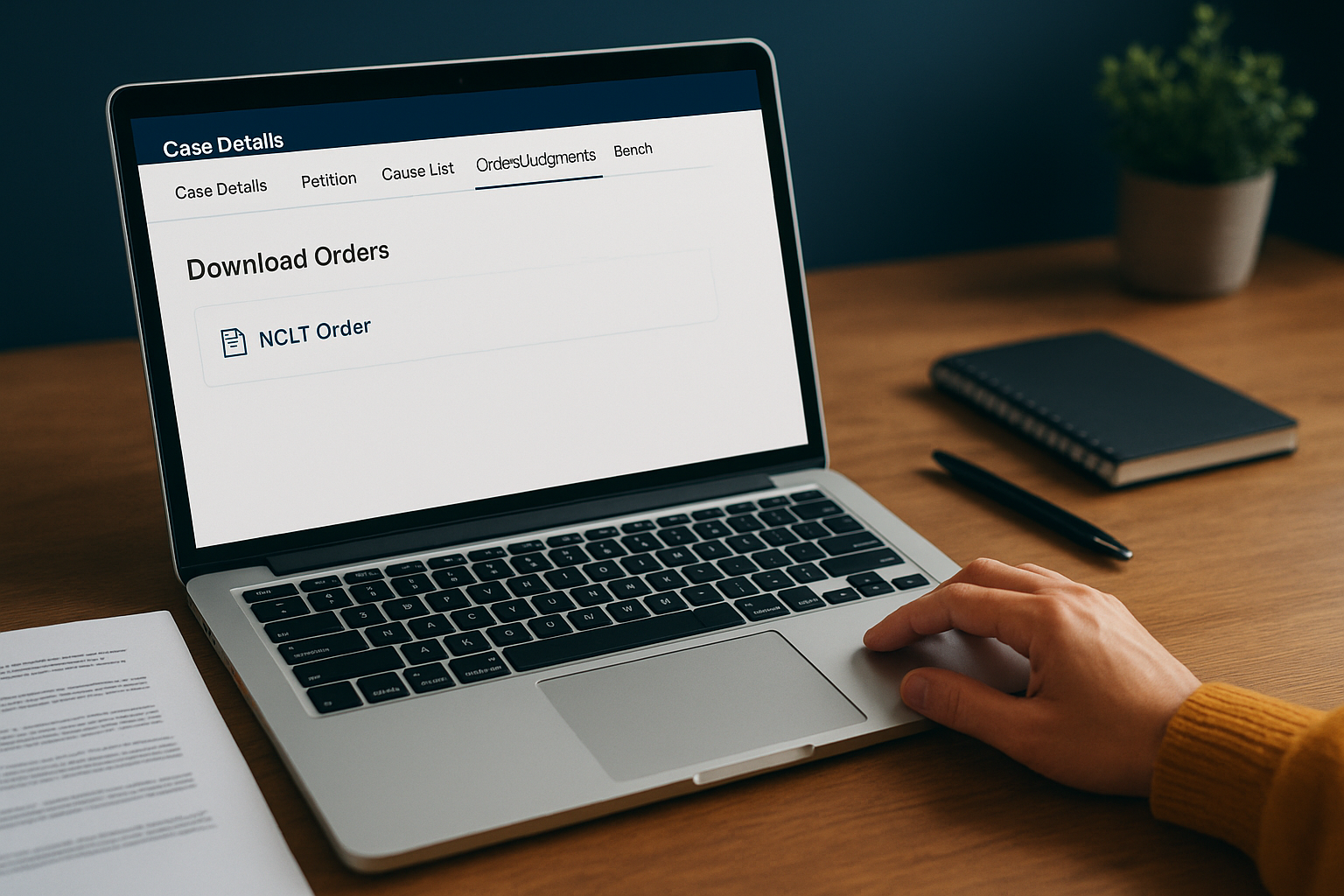
Once the case history confirms an order has been passed, the same case status page usually carries a link to download it as a PDF. NCLT orders get uploaded to the bench's order or judgment section within a few working days of pronouncement, though urgent interim orders sometimes appear sooner. Save every order the day it uploads, since older files occasionally get archived to a different section of the site after a few months, and re-finding them later takes longer than it should.
How do you find and save the right order?
Work through the order section methodically rather than scrolling blindly:
- Open the orders or judgments tab under your case record, separate from the cause list tab
- Match the order date against the hearing date you noted earlier, since multiple orders can exist for one matter
- Download the PDF and rename it with the case number and date, so it stays searchable in your own files
- Check for a certified copy option if you need the order for filing in appeal or execution proceedings
A downloaded order with no clear file name is as good as lost when you need it six months later.
For lengthy orders running fifty or more pages, a tool like LeXi Desk can condense the operative portions into a short summary, so you catch the direction without rereading the entire text.
Keeping track of your NCLT matters going forward
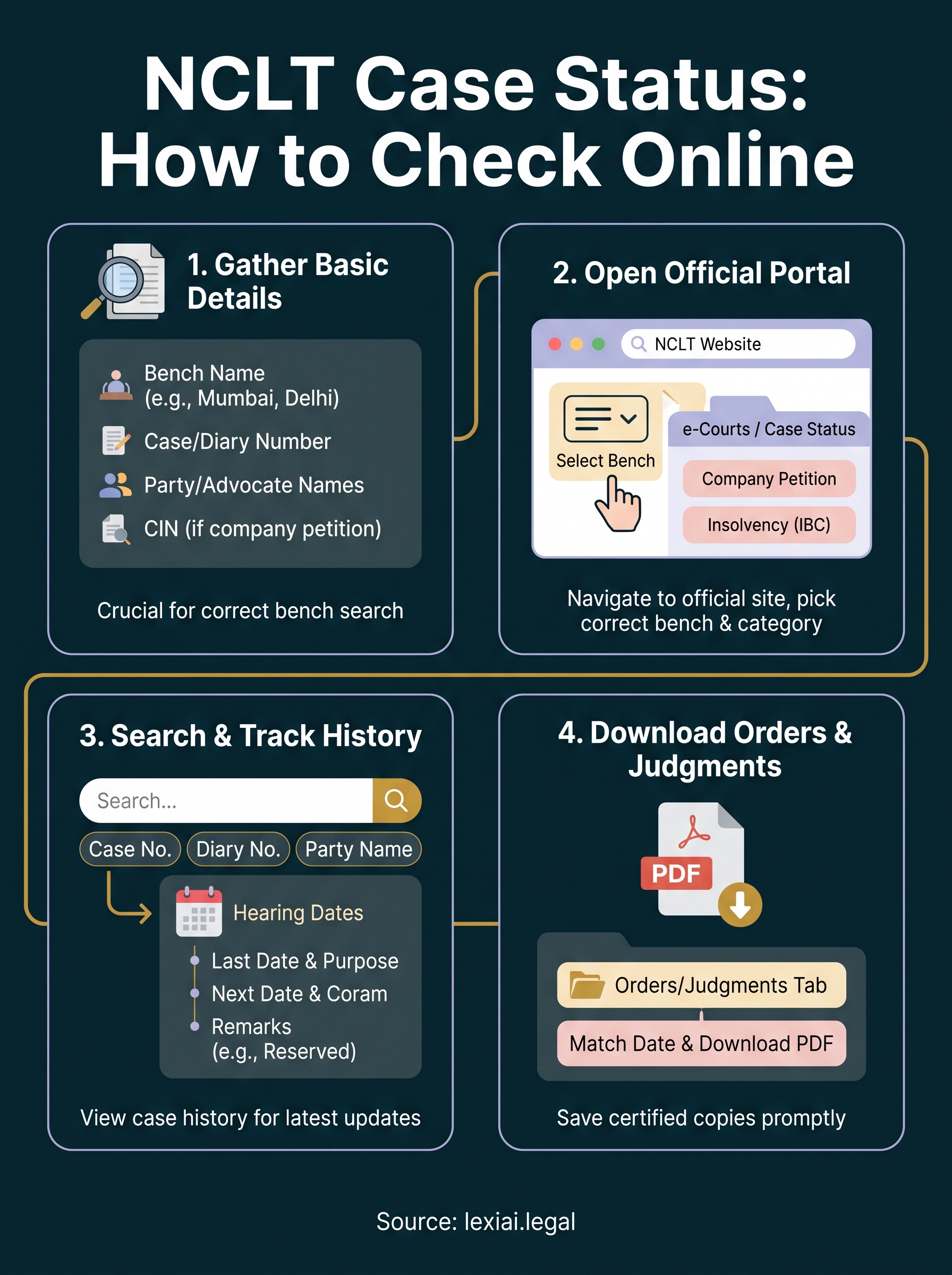
Checking NCLT case status is not complicated once you know the sequence: pick the right bench, search by case number or party name, read the case history, and download the order the day it uploads. Do this consistently and you stop depending on phone calls or guesswork to know where your matter stands. The same steps work whether you track one company petition or a dozen insolvency filings across benches.
What changes as your caseload grows is the effort of tracking everything manually. A lawyer handling twenty active matters across three benches needs more than a spreadsheet and a recurring reminder to stay ahead of hearing dates and fresh NCLT orders. That is where a connected system helps, pulling case updates and summarizing orders so nothing slips past a busy calendar.
If you want that kind of tracking built into your daily practice, see how LeXi AI supports case tracking, research, and drafting in one place.